
Moving Voice Picking Off Dedicated Terminals: What It Actually Takes
What you're replacing, what you need, where the effort goes, and how to pilot without betting the operation
Author: Ognjen Todic | September 2, 2026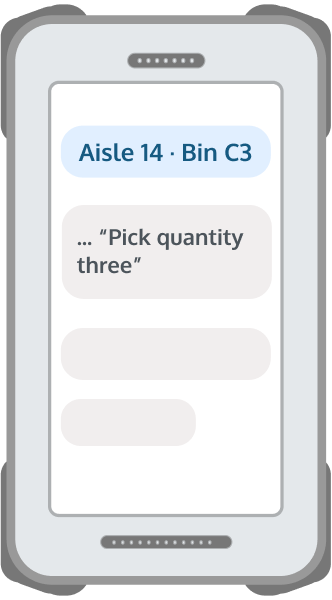
This is Part 1 of a three-part series on bringing voice picking to rugged Android devices. This post is for WMS vendors and solution providers whose customers run voice picking on dedicated voice terminals today. Part 2 is a developer walkthrough for adding voice to a picking app that doesn’t have it yet; Part 3 covers benchmarking a new recognition engine inside an app that already has voice.
For most of the last two decades, voice picking meant a dedicated system: a purpose-built terminal on the worker’s belt, a headset, vendor-supplied task software, and a management console, all from one supplier. It worked, and it still does. But the warehouse around it has changed. Scanning, workflow apps, and communications have consolidated onto a single rugged Android device per worker, and voice is the last workflow still living on its own hardware.
That consolidation has been underway for years. What’s new is that more warehouses are deciding to finish it: sometimes because a terminal refresh is due, sometimes because a picking app now exists that didn’t before, and sometimes because their voice vendor’s roadmap looks less certain than it did. Whatever the trigger, they arrive at the same question: what does it actually take to move voice picking onto the devices we already run?
At Keen Research we build KeenASR, an on-device speech recognition SDK (software development kit: a component that becomes part of your app), and we recently completed validation of the SDK on Zebra rugged Android devices through Zebra’s PartnerConnect program. That gave us a reason to write down the answers we give in evaluation calls every week. This post provides an overview of what you’re replacing, what you need, where the effort really goes, and how to pilot it without betting the operation.
What you’re actually replacing
It helps to be precise about what a dedicated voice system is, because “replacing it” means replacing four things, not one:
- The terminal: the purpose-built device on the belt.
- The task software: the dialog logic that says “aisle fourteen, bin C three,” listens for “three,” and decides what happens next.
- The voice management console: where vocabularies, profiles, and device settings are administered.
- The licensing: typically per device, bundled with the above.
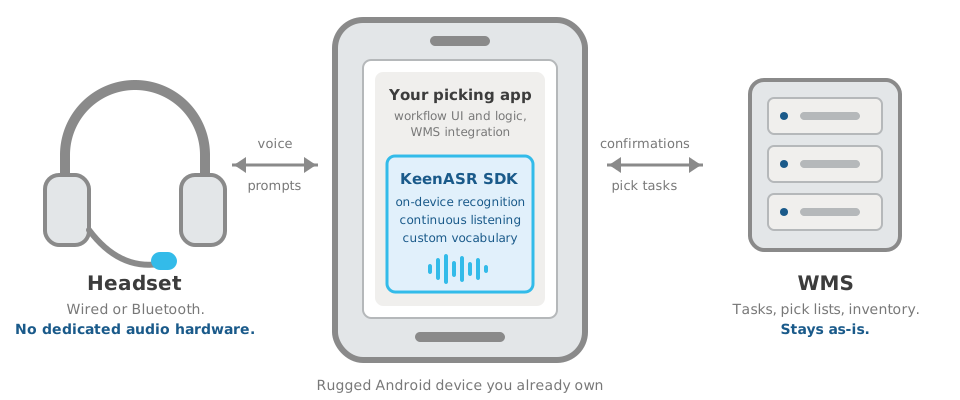
What you are not replacing: your WMS, your headsets (in many cases; more on that below), or your pick-path logic. The WMS keeps sending the same pick lists it always has. The change is entirely in the layer between the WMS and the worker’s ears.
That framing matters because the four things above map onto exactly two things in the new architecture: a picking app on the rugged Android device (which absorbs the task software and most of the console’s job) and a speech recognition engine inside that app (which is where KeenASR sits). The terminal goes away; the device the worker already carries takes over.
The one thing you need: a picking app
The most important thing to understand before planning a migration: KeenASR is a recognition engine, not a voice picking application. The SDK becomes part of your picking app: it listens continuously, recognizes what the worker said against the vocabulary the app defines at each step, and provides the app with the result it can act on. The app owns the dialog: what to prompt, what to accept, what to confirm, what to do next, and how to talk to the WMS.
If your customers run voice on dedicated terminals today, the dialog has been the terminal vendor’s job so far: your mobile client may not offer voice yet, or may not exist yet. Either way, there are three ways to get to a voice-enabled picking app, and the right choice depends on what’s already in place:
1. You already have a picking app without voice. Adding voice is an integration project inside code you control: the SDK, a dialog layer, and the grammars for each workflow step. Nothing is replaced, and the app, WMS integration, and device management stay exactly as they are. This is the smallest step of the three, and it’s discussed in more detail in Part 2 of this series.
2. You don’t have a mobile picking app yet, or are rebuilding it. The app and the voice design happen together. That’s more work up front, but it means voice informs the workflow design from day one instead of being bolted on, and the dialog can be shaped around how your customers’ pickers actually talk. What you need is Android development expertise for the app itself; the voice-specific work on top of it (the SDK integration, the dialog layer, and the grammars) is what Part 2 of this series walks through.
3. Work with a voice-application partner. A number of ISVs build voice-directed work applications for Android that connect to common WMS platforms. They bring the dialog design, the integration, and warehouse experience; the recognition engine underneath is a component they choose. Partnering can be faster than building when voice isn’t where you want to spend your roadmap. The trade-offs are the usual ones: you or your customers license the voice application from the ISV, with its own pricing model; the dialog and its roadmap are the partner’s to evolve; and there’s one more vendor in the support chain. For some platforms that’s the right deal; for others it’s the argument for paths 1 and 2.
When you’re integrating into your own client, new or existing, our professional services team can take on integration and proof-of-concept development so your team isn’t learning voice UX and speech recognition at the same time. When a partner builds the app, our role is to make sure the recognition layer fits and performs.
Where the development effort goes: dialog and vocabulary
Once the app question is settled, the substantive work is in two places.
Dialog design. A voice picking dialog looks simple: prompt, response, confirm, next. The craft is in the details. How check digits are spoken and verified, how a worker says “short” or “skip” or “repeat,” how the system recovers when a response wasn’t understood, how much confirmation is enough without slowing a fast picker down. If you’re migrating, you already have a dialog that works; the job is to reproduce its behavior in the app, not reinvent it. Involve the pickers who’ve used the old system for years; they know every shortcut and every annoyance.
Vocabulary and grammars. This is where on-device recognition earns its accuracy. Rather than transcribing open speech, KeenASR listens for what the app tells it to expect at each step: at a quantity prompt, the numbers; at a location confirmation, the check digits; at any point, the small set of commands. Constraining recognition this way is what makes it reliable in a loud warehouse. The engine isn’t guessing among every word in the language, only among the words that make sense right now. Migrating means porting your command set, your site jargon, and your numbering conventions into these grammars. It’s methodical rather than difficult, and it’s something we do with every customer.
Audio: headsets and the device
Two practical notes that come up in every migration.
Your existing headsets may carry over. If they’re standard wired or Bluetooth headsets, they’ll generally work with rugged Android devices; if they’re proprietary to the terminal, they probably won’t, and you’ll need replacements. Either way, test in the warehouse: microphone placement and noise handling vary between models more than spec sheets suggest. (We’ll cover headset selection in a separate post.)
The device requirements are modest. Audio comes from the headset, not the device microphone, so all the device needs is enough processing capability to run recognition in real time alongside the picking app. Rugged Android models from the last several years qualify; our validation on Zebra devices confirms exactly that.
Running a pilot
Before replacing a working voice system, we recommend running a pilot alongside it. A good pilot setup:
- One zone or one workflow, not the whole warehouse.
- A few of the devices the customer’s site already uses, or the models being considered for the next refresh.
- The existing system keeps running. Pickers in the pilot zone use the new setup; everyone else works as before, and the old system stays available as a fallback.
- Compare against the site’s current numbers: recognition accuracy, picks per hour, error rate, and worker acceptance. Pickers will say within a day whether the dialog feels right.
How long a pilot takes depends on the app path. If the picking app already exists (yours or a partner’s), a working pilot typically takes a few weeks. If the app needs to be built, add the app development time; the voice integration is still a matter of weeks, but the app sets the schedule.
What you get at the end
For you and for your customers:
- One device per worker. Scanning, workflow, and voice on the rugged Android device workers already carry. No second set of hardware to buy, manage, and refresh.
- A vocabulary you control. Site jargon, new commands, new workflows, changed in your app, on your schedule, not through a terminal vendor.
- Voice that isn’t tied to a vendor’s roadmap. The recognition engine is a component inside your app. If the engine needs to change someday, the app and the dialog stay yours.
- Recognition that works in every aisle. Fully on-device, so it doesn’t care whether the Wi-Fi reaches the back corner.
- Economics that scale. Flat licensing per deployment, no per-device terminal cost, and picking is only the first workflow: replenishment, cycle counting, put-away, and inspections run on the same engine.
Where to start
If your customers are on dedicated terminals today, the first step is the app question: look at your mobile client, what it does today, where voice would fit, and whether you want to build or partner. That answer determines your path more than anything else.
From there, we’re glad to walk through the details with your team: the vocabulary, the dialog, the devices, and what a pilot would look like at a customer site. Talk to our engineers or start on the voice picking page, which lays out all three starting points side by side.
Next in the series: Part 2, a developer walkthrough for adding voice to a picking app that doesn’t have it yet.