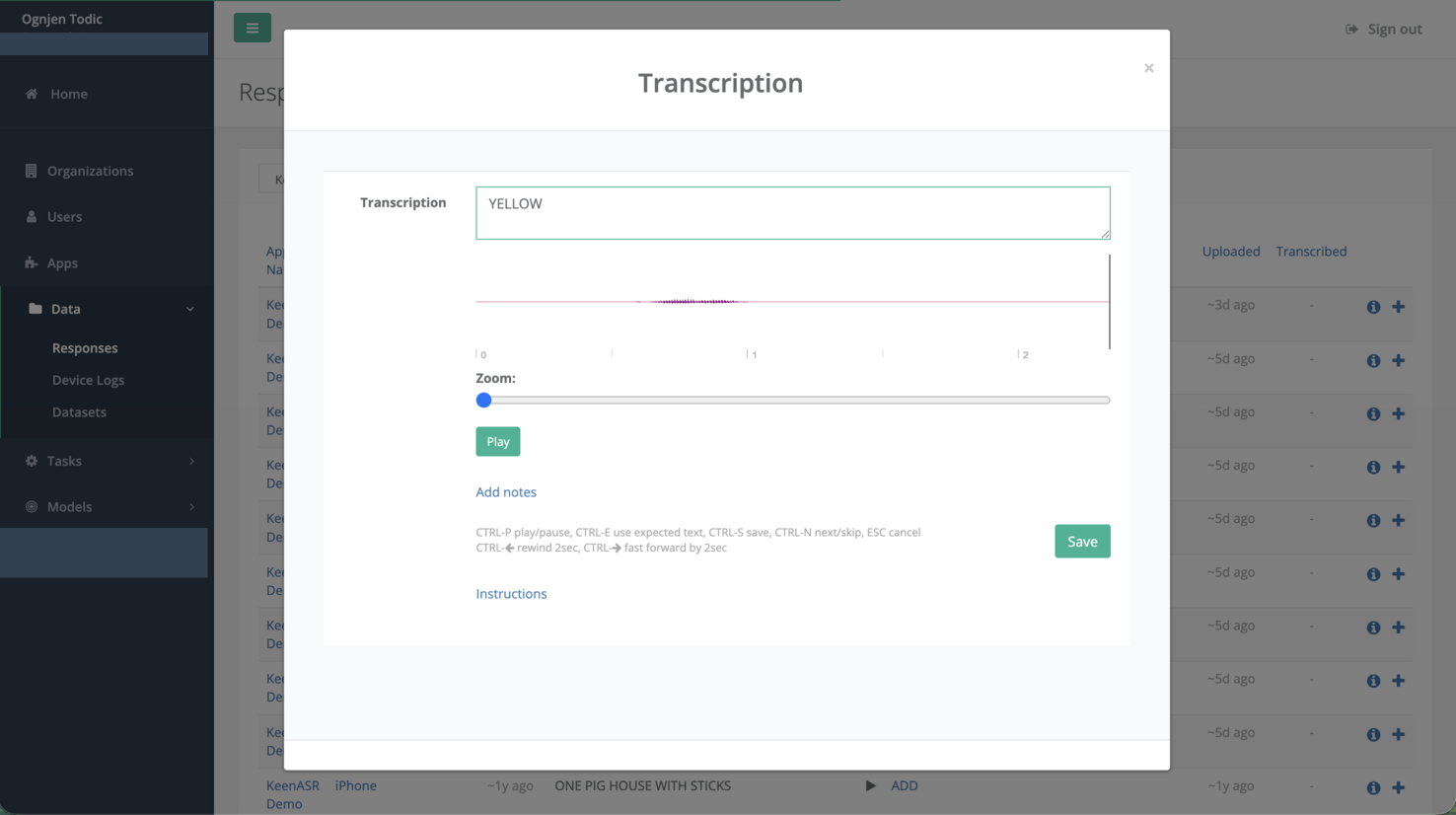
KeenASR Dashboard is a web application available to our customers. It provides developers with insight into what is happening on the device during testing, turning the ASR engine from a black box into something you can inspect, debug, and iterate on.
The SDK communicates with the Dashboard through a private API. When enabled, the SDK uploads recognition session data to the Dashboard, where you can review it in detail. All Dashboard functionality is disabled by default; no data is collected or uploaded unless you complete all of the setup steps described below.
Enabling Uploads
1. Get an account
Contact us to create a Dashboard account for your organization.
2. Create an app in Dashboard
Once logged in, create a new app in Dashboard that corresponds to your mobile app. The bundle identifier (iOS) or package name (Android) must match your app. Dashboard will generate an APP_KEY for the app, which you will use in your code.
3. Set up uploads in your app
Initialize the upload thread early in your app lifecycle using the APP_KEY from the previous step. Then, in your recognition callback, queue each final response for upload.
// Initialize the upload thread (typically at app startup)
Uploader.createUploadThread(APP_KEY)

// In your recognition callback
onFinalResponse(response, recognizer) {
    response.queueForUpload()

    // do something with the response/result
}
The uploader runs on a background thread and uploads responses as long as there is internet connectivity. Once configured, responses will appear in Dashboard shortly after each final result is produced.
You can pause and resume uploads at any time, or stop the uploader entirely:
Uploader.pause()
Uploader.resume()
Uploader.stop()
Attaching Custom Data
You can attach arbitrary app-level metadata to a response before queuing it for upload. The data is merged into the response JSON that Dashboard displays alongside the recognition result. This is useful for surfacing context like user identifiers, lesson or prompt identifiers, app-side scoring, or any other information that helps you analyze responses on Dashboard.
onFinalResponse(response, recognizer) {
    // Attach app-specific context to the response JSON.
    // Pass a well-formed JSON string; each call replaces any previously
    // attached custom JSON for this response.
    response.setCustomJson("{ \"userId\": \"u123\", \"lessonId\": \"l42\", \"appScore\": 0.87 }")

    response.queueForUpload()
}
setCustomJson returns false (without modifying the response) if the input is not valid JSON, so use your platform’s JSON serializer to build the string rather than concatenating it by hand. setCustomJson was introduced in release 2.2.
Dashboard Webapp
Dashboard web application lets you:
- Listen to recordings of what the device microphone captured during each recognition session
- Review recognition results, including final results and various response metadata
- Group responses into datasets to organize recordings by test scenario, user group, or any criteria that fits your workflow, making it easy to track accuracy across different conditions
- Transcribe and annotate recordings to evaluate accuracy
- Inspect the recognizer setup for each session, including which decoding graph and ASR Bundle were used, and other configuration details
- Filter and search responses by date, and other metadata
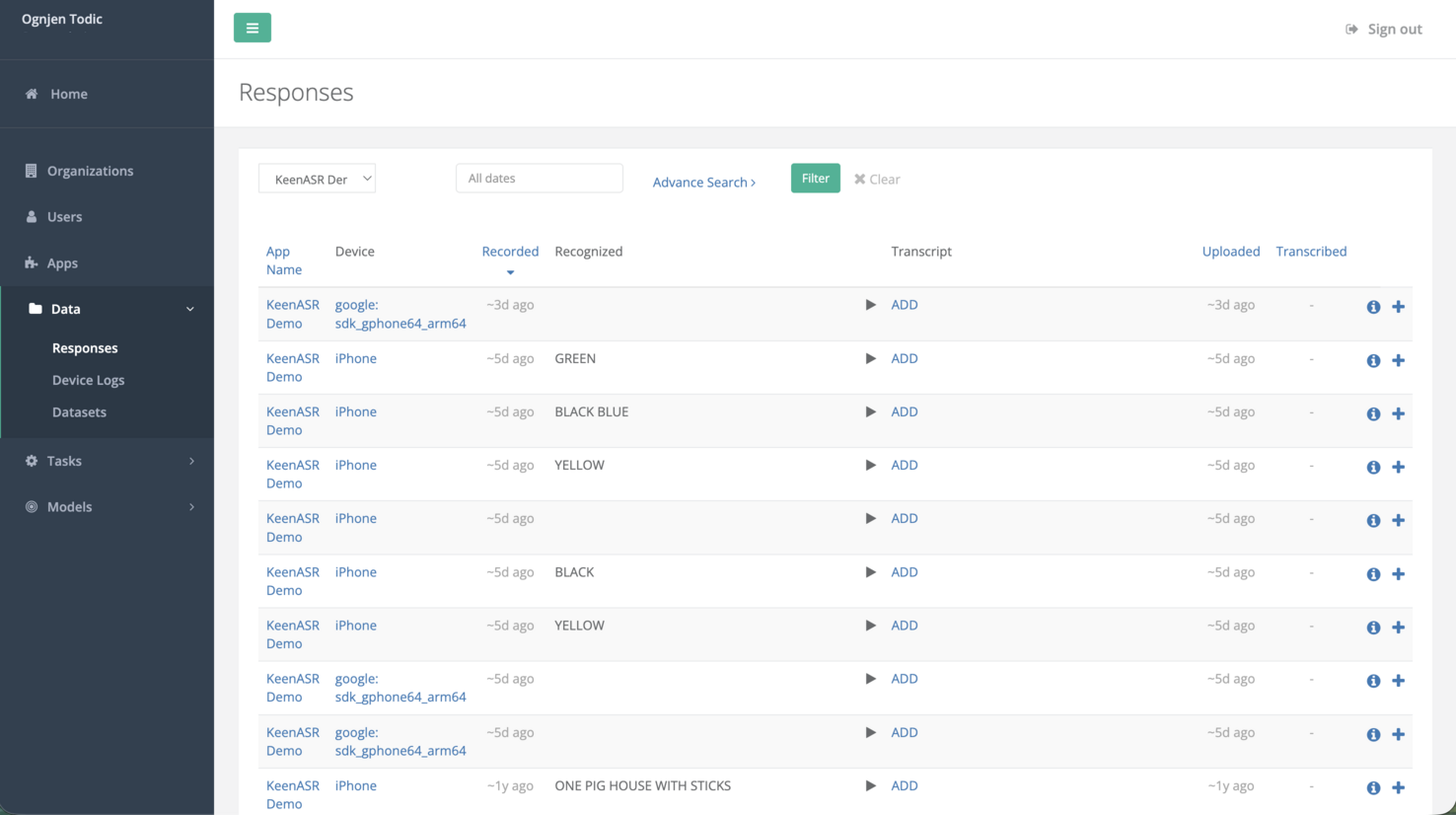
Browse all uploaded responses, filter by app and date, and play back or transcribe recordings directly from the list.
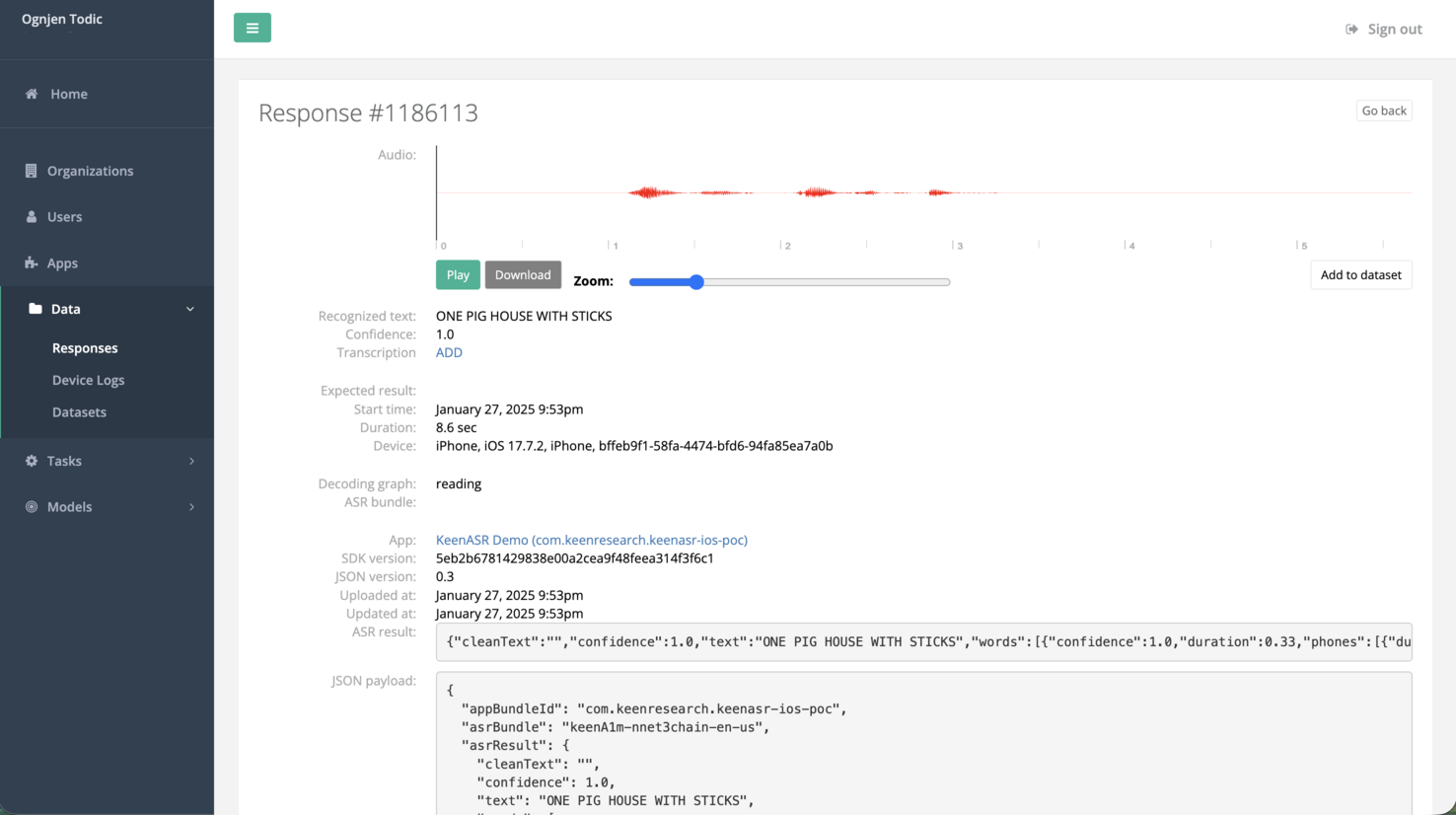
Drill into a single response to see the recognized text, confidence score, device info, decoding graph, and the full JSON payload.
Transcribe recordings to compare what was actually said against the recognition result.